datamaskinen

Thomas Frössman's blog on programming, technology, tools, or something like that.

Emacs Light and Dark Theme

| Comments

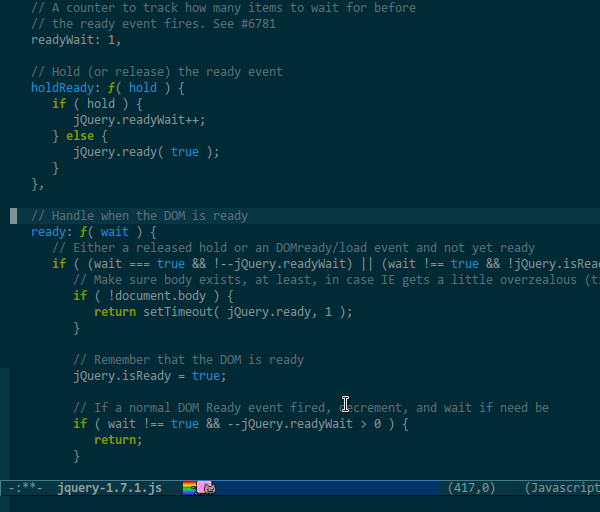
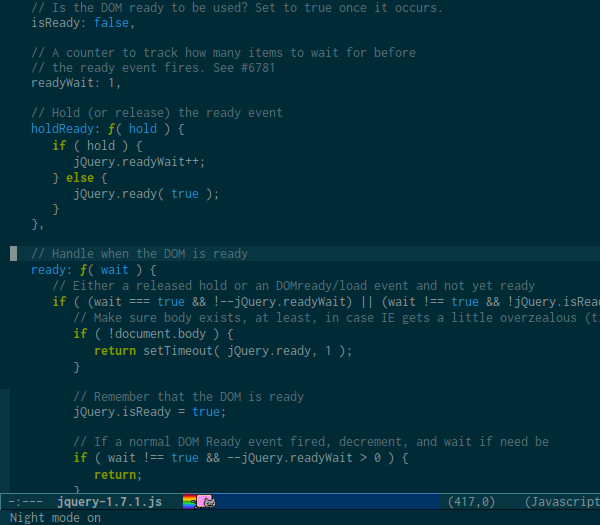
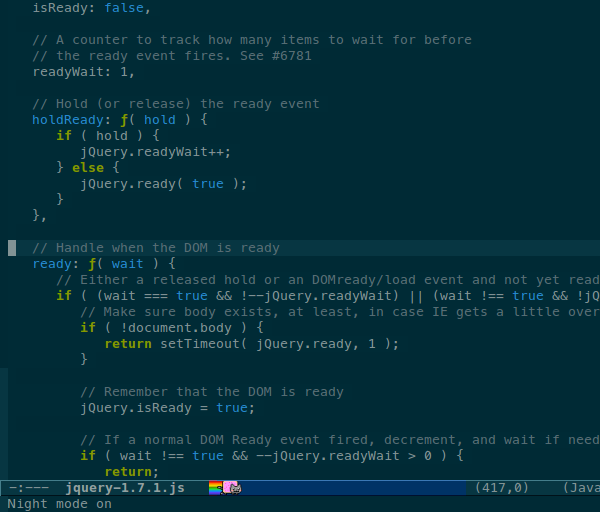
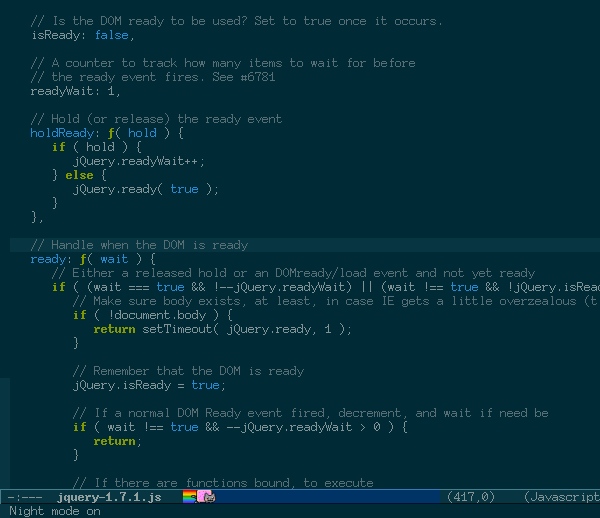
Solarized dark and light

(click on the images for full screen)

screen shot

screen shot

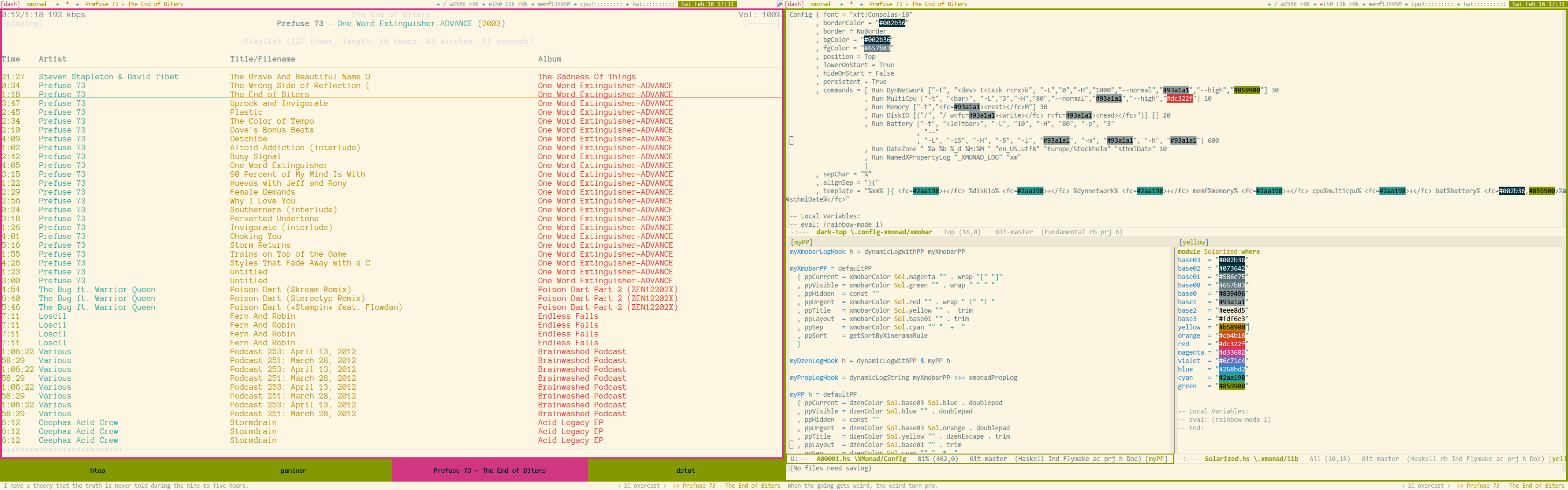
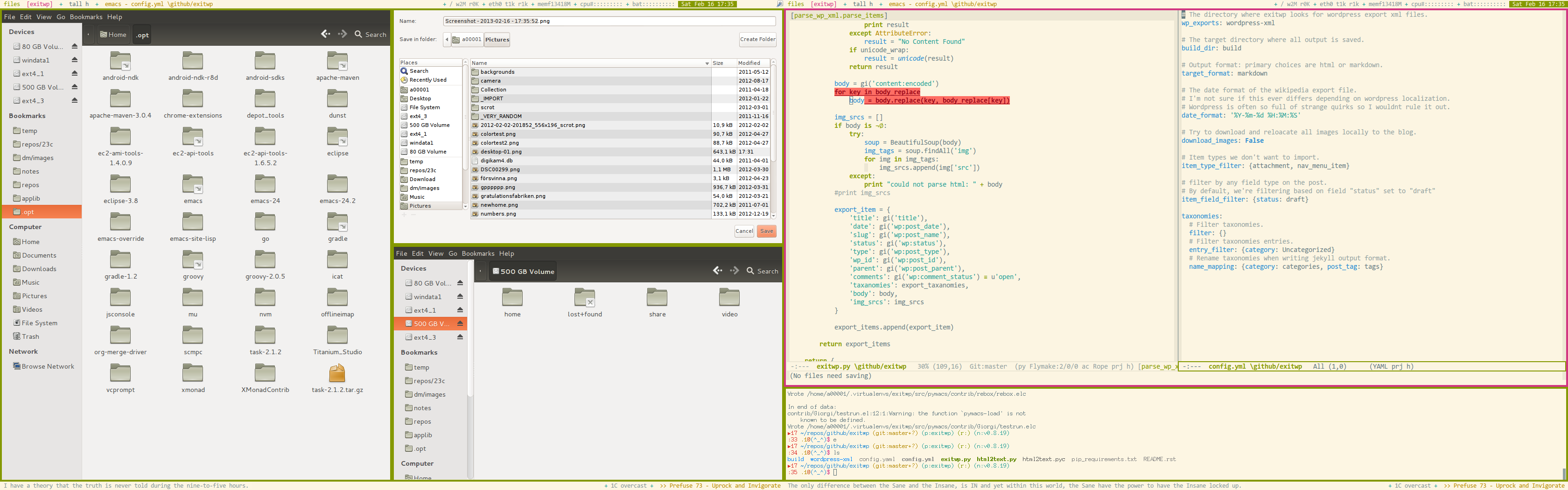
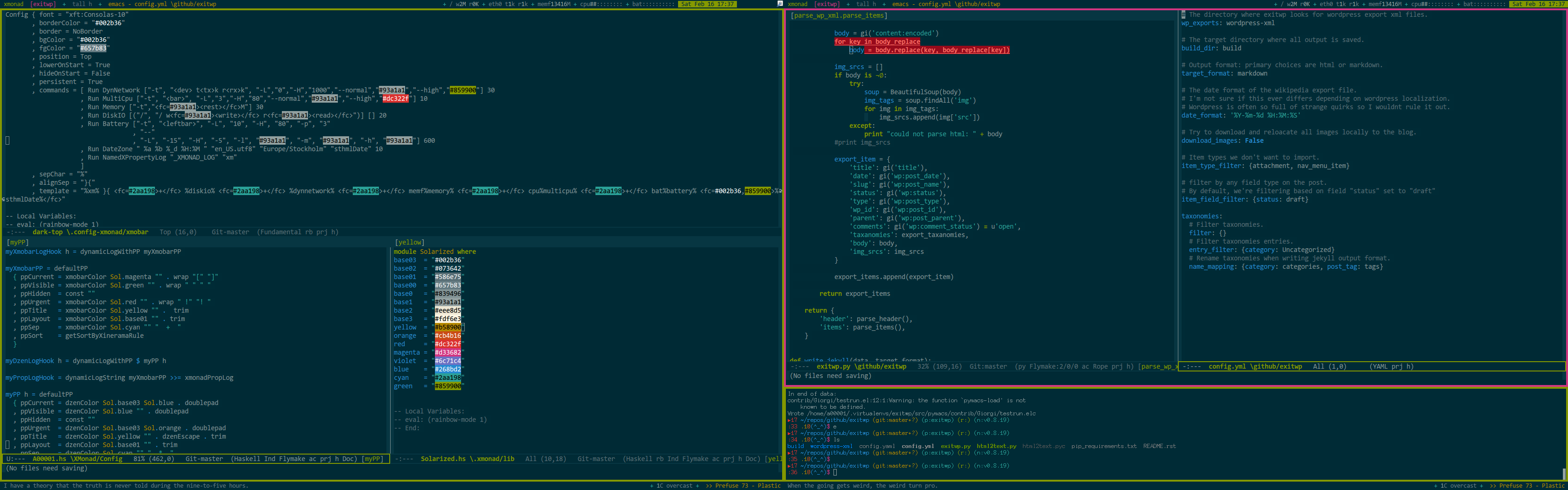
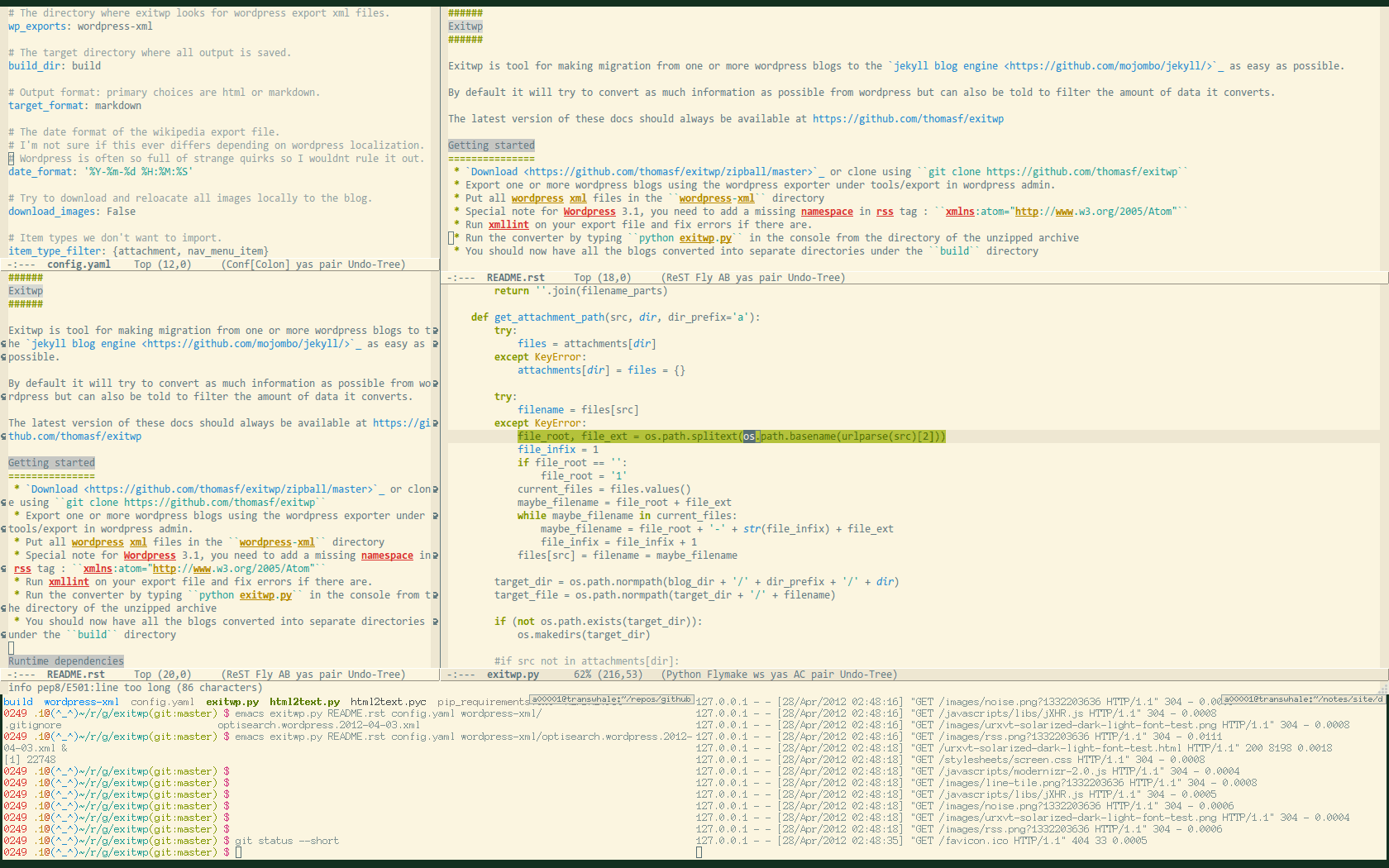
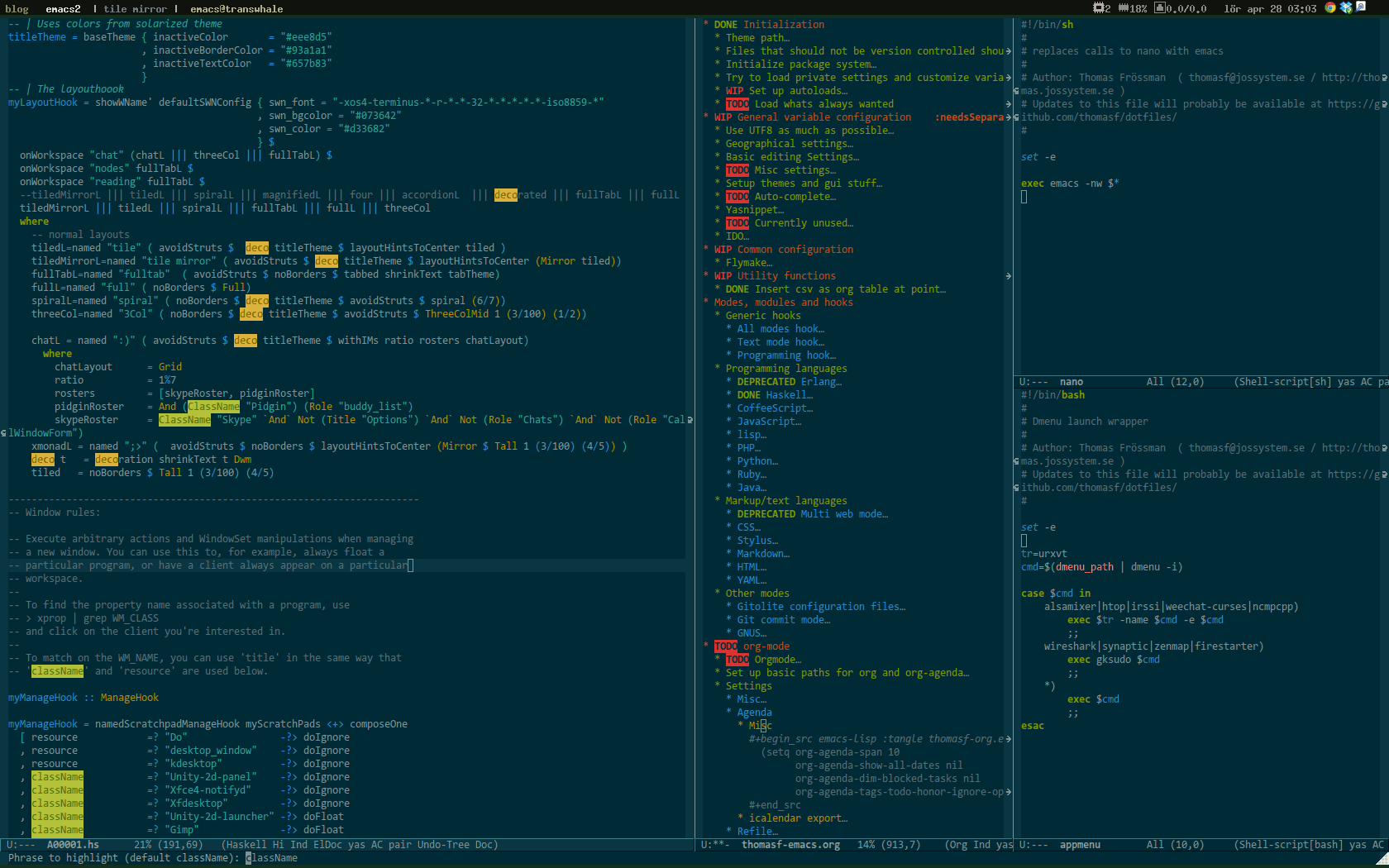
The screen shots are of different modes in Emacs 24 and a slightly customized version of Bozhidar Batsov’s solarized-emacs color theme.

Font Face and Size for Light Terminal

| Comments

Light terminal

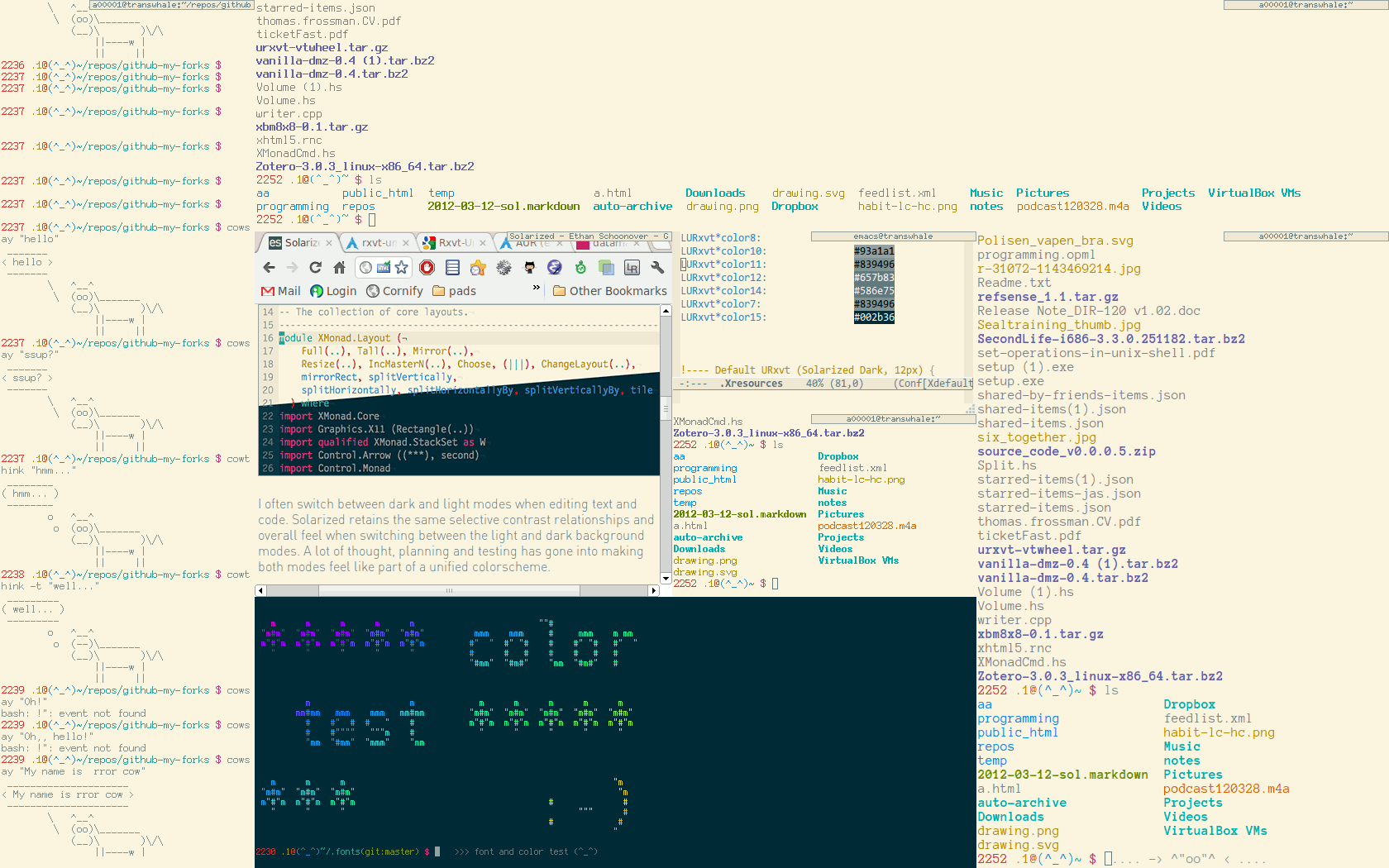
Trying out font faces and sizes for a default light theme terminal.

The terminal is rxvt-unicode-256, the color theme is Solarized.

(click on the image for full screen)

screen shot

I went for the one to the absolute left, Anonymous Pro 10pt.

Configuration

Rxvt is configured in the ~/.Xresources file.

1
2
3
4
5
6
7
8
9
10
11
12
13
14
15
16
17
18
19
20
21
22
23
24
25
26
27
28
29
30
31
32
33
34
35
36
37
38
39
40
41
42
43
44
45
46
47
48
49
50
51
52
53
54
55
56
57
58
59
60
61
62
63
64
65
66
67
68
69
70
71
72
73
!
!   .Xresources file
!   Man pages: xrdb, Xsession
!
! --------------------------------------------
! Note that $HOME/.Xdefaults is a relic from
! X Version 10 (and  X11R1)  days, before
! app-defaults  files were implemented.
! It has been deprecated for over ten years
! .Xresources should be used instead.
! --------------------------------------------


! ...

!---- URxvt - General settings {
URxvt*:borderLess:                    true
URxvt*cursorBlink:                    true
URxvt*font:                           terminus-12
URxvt*jumpScroll:                     true
URxvt*scrollBar:                      false
URxvt*scrollTtyOutput:                false
URxvt*scrollTtyKeypress:              true
URxvt*urgentOnBell:                   true
URxvt*visualBell:                     false
URxvt*perl-ext-common:                default,matcher
URxvt*urlLauncher:                    google-chrome
URxvt*matcher.button:                 1

!---- Light URxvt (Solarized Light, 11pt)
LURxvt*font:                   xft:Anonymous Pro-10
LURxvt*fading:                 0
LURxvt*background:             #fdf6e3
LURxvt*foreground:             #839496
LURxvt*fadeColor:              #fdf6e3
LURxvt*cursorColor:            #586e75
LURxvt*pointerColorBackground: #93a1a1
LURxvt*pointerColorForeground: #586e75
LURxvt*color0:                 #073642
LURxvt*color8:                 #fdf6e3
LURxvt*color10:                #93a1a1
LURxvt*color11:                #839496
LURxvt*color12:                #657b83
LURxvt*color14:                #586e75
LURxvt*color7:                 #839496
LURxvt*color15:                #002b36

!---- Default URxvt (Solarized Dark, 12px)
URxvt*fading:                         30
URxvt*background:                     #002b36
URxvt*foreground:                     #657b83
URxvt*fadeColor:                      #002b36
URxvt*cursorColor:                    #93a1a1
URxvt*pointerColorBackground:         #586e75
URxvt*pointerColorForeground:         #93a1a1
URxvt*colorUL:                        #859900
URxvt*colorBD:                        #268bd2
URxvt*color0:                         #073642
URxvt*color8:                         #002b36
URxvt*color1:                         #dc322f
URxvt*color9:                         #cb4b16
URxvt*color2:                         #859900
URxvt*color10:                        #586e75
URxvt*color3:                         #b58900
URxvt*color11:                        #657b83
URxvt*color4:                         #268bd2
URxvt*color12:                        #839496
URxvt*color5:                         #d33682
URxvt*color13:                        #6c71c4
URxvt*color6:                         #2aa198
URxvt*color14:                        #93a1a1
URxvt*color7:                         #eee8d5
URxvt*color15:                        #fdf6e3

The terminal is launched either with plain urxvt for the default dark terminal or urxvt -name LURxvt for the light one.

Monospaced Fonts

| Comments

Time for a new face?

When writing code it is usually a good thing to use a mono spaced font since the text often benefits from alignment based on character and white space counts. I recently did a short review of a bunch of fonts that seems to be generally liked amongst programmers. Below are some screenshots I made to support the decision making during the final selection.

WARNING: If your browser window is too narrow the following screenshots might be scaled and misrepresenting the fonts.

Update 2012-04-27: I have gone back to Consolas after a feew weeks with Inconsolata I’ve gone back to Consolas.

Consolas 10pt

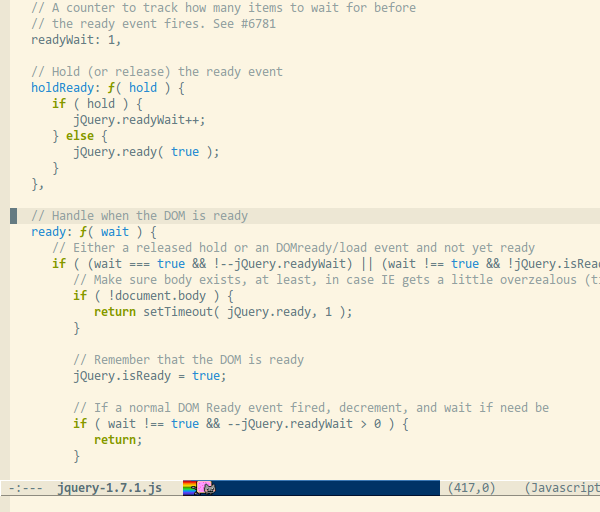
Consolas is a mighty beautiful font. I still regard it as the most almost perfect awesome programmers font with the exception of not having an open font license.

Consolas was my main programming font from 2007 until very recent.
Consolas light

Consolas dark

Inconsolata 10.8pt

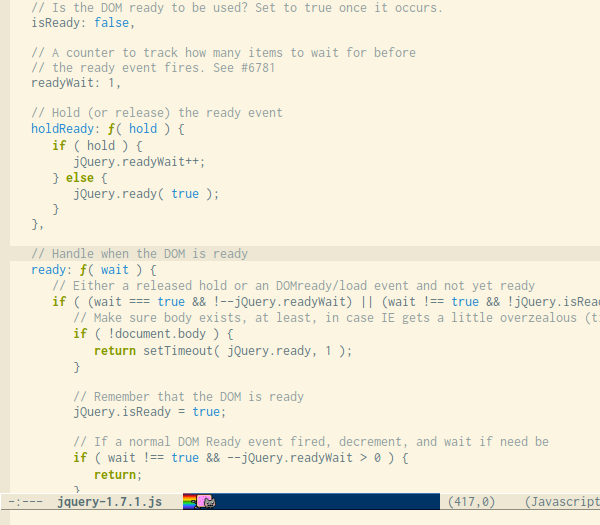
Inconsolata is quite similar to Consolas which the author also states as an inspirational source. Compared to Consolas it’s wider and has thinner lines.

Inconsolata is my current main programming font. The version I use is from the Google font directory.
Inconsolata light

Inconsolata dark

Meslo LG S 10pt

Meslo LG is a customized version of Apple’s Menlo font which in turn is a customized Bitstream Vera Sans Mono.
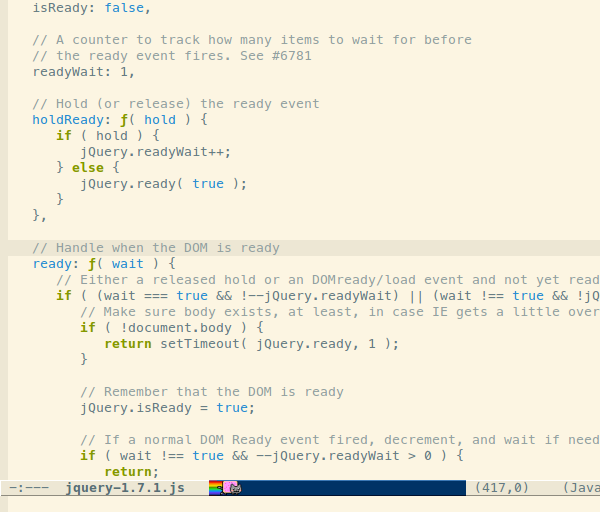
Meslo light

Meslo dark

Anonymous Pro 13px

Anonymous pro is another nice font, especially it’s bitmap versions.
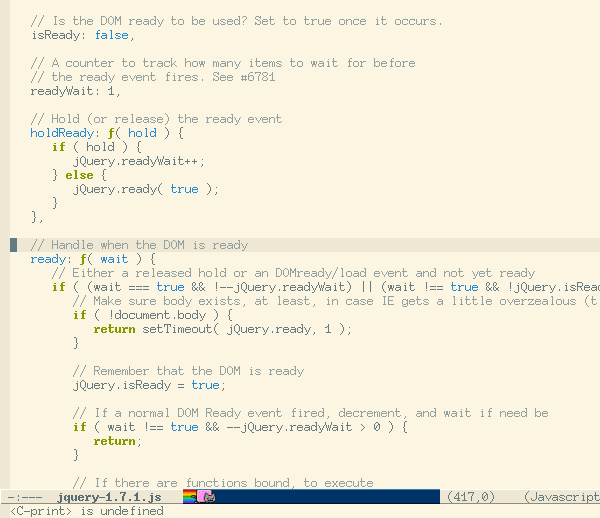
Anonymous Pro light

Anonymous Pro dark

Terminus 12px

Terminus is a monospaced bitmap font and it’s very readable in small sizes. I have used it as my main terminal emulator font for ages. I don’t use it so much for programming because characters like () {} looks a tad too similar for fast reading.
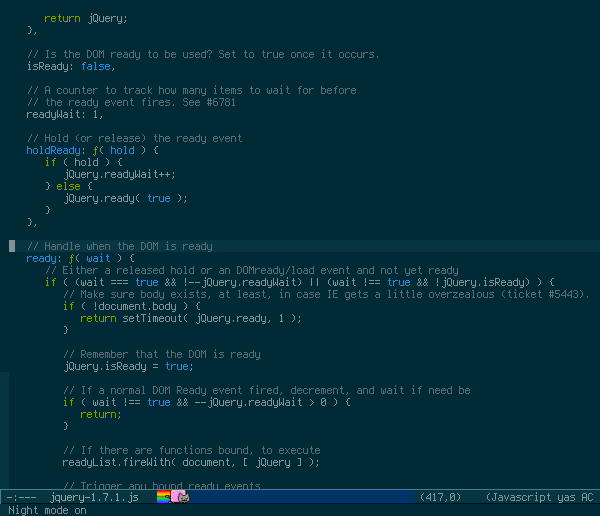
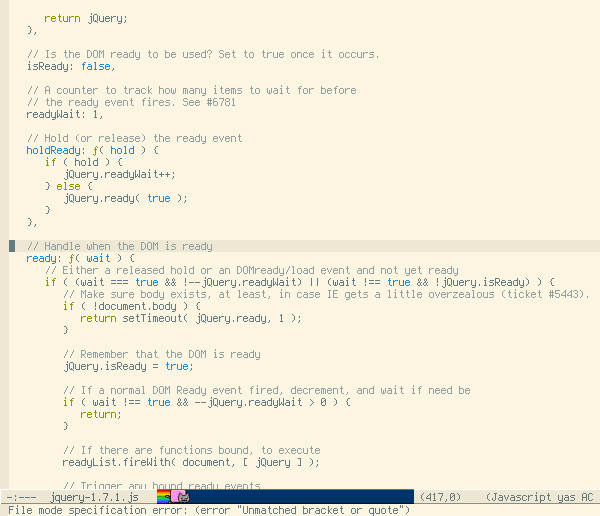
Terminus light

Termonus dark

My Bash Prompt Revisited

| Comments

I recently wrote an entry about my bash prompt that made me think about it so much so that I created a new one :D.

This is an short but detailed description of my current bash prompt. The main focus is to highlight important information and conserve display space by keeping the prompt line as short as possible without sacrificing too much information.

Basic prompt functions

bash prompt screenshot 1

Format:

TIME USERALIAS/USERNAME@HOSTALIAS/HOSTNAME CURRENT-DIRECTORY $/#

Time

If more than one terminal is open at one time it can be useful to see when or in which order commands have been executed. The time format is 4 digits (24 hour clock). To conserve space the usual colon infix (:) is omitted.

User alias or name

Either alias to the real user name, otherwise a maximum of 4 characters of the actual user name are displayed.

Host alias or name

Either an alias to the real host name, otherwise a maximum of 4 characters of the actual host name are displayed.

Current directory

The current working directory. The full path is shown until a 25 characters limit has been reached, then only the initial letter of each directory leading up the the last one are displayed.

Last part

$ for a normal user or # for root prompt. If the previous command exited with an error the normal user prompt is replaced with ¤%&! and the root prompt with !!! #.

Host group, SSH and SSH agent:

bash prompt screenshot 2

USER@HOST DIRECTORY SSH-AGENT-INDICATOR(@)SSH-INDICATOR(ssh) $/#

SSH and SSH Agent indicators

The SSH indicator ssh is shown after the current working directory when connected though ssh. If an ssh agent is running the ssh prompt is prefixed with an @.

Hostname (again)

As seen in the picture above, the host name alias has a red background. This is because the system is identified as a server.

Git/version controlled meta data

bash prompt screenshot 3

Whats going on here?

The git vcs section of the prompt will show you branch name and if there are unstaged or uncommitted changes.

Vcprompt is called if it’s installed to support git/mercurial/subversion, otherwise git’s default prompt functions are used.

The actual prompt code

To use this prompt, paste the following into ~/.bashrc :

somehere in .bashrc…
1
2
3
4
5
6
7
8
9
10
11
12
13
14
15
16
17
18
19
20
21
22
23
24
25
26
27
28
29
30
31
32
33
34
35
36
37
38
39
40
41
42
43
44
45
46
47
48
49
50
51
52
53
54
55
56
57
58
59
60
61
62
63
64
65
66
67
68
69
70
71
72
73
74
75
76
77
78
79
80
81
82
83
84
85
86
87
88
89
90
91
92
93
94
95
96
97
98
99
100
101
102
103
104
105
106
107
108
109
110
111
112
113
114
115
116
117
118
119
120
121
122
123
124
125
126
127
128
129
130
131
132
133
134
135
136
137
138
139
140
141
142
143
144
145
146
147
148
149
150
151
152
153
154
155
156
157
158
159
160
161
162
163
164
165
166
167
168
169
170
171
172
173
174
175
176
177
178
179
180
181
182
183
184
185
186
187
188
189
190
191
192
193
194
195
196
197
198
199
200
201
202
203
204
205
206
207
208
209
210
211
212
213
214
215
216
217
218
219
220
221
222
223
224
# ------------------------------------------------------------------------------
# Aliases for host and user names
#

# Provide user name alias for prompt
__user_alias() {
    case `whoami` in
        root)
            echo -n "###"
            ;;
        a00001)
            echo -n ".1"
            ;;
        *)
            echo -n ""
            ;;
    esac
}

# Provide host tags 
case `hostname -f` in
    *.ec2.internal)
        HOST_TAGS=":server:"
        ;;
    transwhale*|a00001*|kranky*|wonky*)
        HOST_TAGS=":workstation:"
        ;;
    *)
        HOST_TAGS=""
        ;;
esac
export HOST_TAGS

# Provide host alias names
case `hostname -f` in
    transwhale*)
        HOST_ALIAS="(^_^)"
        ;;

    ip-10-80-11-253.ec2.internal)
        HOST_ALIAS="tid"
        ;;
esac

[ -n "${HOST_ALIAS}" ] && export HOST_ALIAS


# ------------------------------------------------------------------------------
# Bash PROMPT
#


function __prompt_date {
    echo -n `date +%H%M`
}

# Username or alias
function __prompt_username {
    if [ "$(type -t __user_alias)" == "function" ]; then
        __user_alias
    else 
        echo -n "$(whoami | cut -c1-4)"
    fi
}

# Hostname or alias
function __prompt_hostname {
   if [[ -n ${HOST_ALIAS} ]]; then
       echo -n ${HOST_ALIAS}
   else
       echo -n "$(hostname | cut -c1-4)"
   fi
}

# SSH agent indicator
function __prompt_ssh_agent {
    if [ -n "${SSH_CLIENT}" ] && [ -n "${SSH_AUTH_SOCK}" ] && [ -e "${SSH_AUTH_SOCK}" ]; then
        echo -n "@"
    fi
}

# SSH session session indicator
function __prompt_ssh {
    if [ -n "$SSH_CLIENT" ]; then
        echo -n 'ssh'
    fi
}

# Show version controlled repository status.
# vcprompt is used if installed, otherwise __git_ps1 will be tried as well.
# Install vcsprompt -> hg clone https://bitbucket.org/mitsuhiko/vcprompt
export GIT_PS1_SHOWDIRTYSTATE="yes"
export GIT_PS1_SHOWUPSTREAM="no"
export GIT_PS1_SHOWUNTRACKEDFILES="yes"
function __prompt_vcs {
    if [[ $(which vcprompt) ]]; then
        vcprompt -f "(%n:%b%m%u)"
    elif [[ $(type -t __git_ps1) == "function" ]]; then
        __git_ps1 "(%s)"
    fi
}


# Support function to compactify a path
# copied: http://stackoverflow.com/questions/3497885/code-challenge-bash-prompt-path-shortener
function __dir_chomp {
    local p=${1/#$HOME/\~} b s
    # Remove [ and ] from strings
    # (also, regular expression matching on [ ] below creates infinite recursion.)
    p=${p//[/ }
    p=${p//]/ }
    # Remove multiple spaces, don't need them
    p=${p//  / }
    s=${#p}
    while [[ $p != ${p//\/} ]]&&(($s>$2))
    do
        p=${p#/}
        [[ $p =~ \.?. ]]
        b=$b/${BASH_REMATCH[0]}
        p=${p#*/}
        ((s=${#b}+${#p}))
    done
    echo ${b/\/~/\~}${b+/}$p
}

# Compact version of current working directory
function __prompt_pwd {
    echo -n $(__dir_chomp  "$(pwd)" 25)
}

# 
function __prompt_last {
  if [[ $EUID -eq 0 ]]; then
      if [[ ${RET} = "0" ]]; then
          echo -n "#"
      else
          echo -n '!!! #'
      fi
  else
      if [[ ${RET} = "0" ]]; then
          echo -n "\$"
      else
          echo -n '¤%&!'
      fi
  fi
}


PROMPT_COMMAND='export RET=$?;'

# Set up prompt
function __prompt_activate {

    local resetFormating="\[\033[0m\]"     # reset text format

    # regular colors
    local black="\[\033[0;30m\]"
    local red="\[\033[0;31m\]"
    local green="\[\033[0;32m\]"
    local yellow="\[\033[0;33m\]"
    local blue="\[\033[0;34m\]"
    local magenta="\[\033[0;35m\]"
    local cyan="\[\033[0;36m\]"
    local white="\[\033[0;37m\]"

    # High intensity colors
    local blackH="\[\033[0;90m\]"
    local redH="\[\033[0;91m\]"
    local greenH="\[\033[0;92m\]"
    local yellowH="\[\033[0;93m\]"
    local blueH="\[\033[0;94m\]"
    local magentaH="\[\033[0;95m\]"
    local cyanH="\[\033[0;96m\]"
    local whiteH="\[\033[0;97m\]"

    # background colors
    local blackB="\[\033[40m\]"
    local redB="\[\033[41m\]"
    local greenB="\[\033[42m\]"
    local yellowB="\[\033[43m\]"
    local blueB="\[\033[44m\]"
    local magentaB="\[\033[45m\]"
    local cyanB="\[\033[46m\]"
    local whiteB="\[\033[47m\]"

    # Select host name color based on HOST_TAGS environment variable
    case ${HOST_TAGS} in
        *:server:*)
            local HOST_COLOR=${black}${redB}
            ;;
        *:workstation:*)
            local HOST_COLOR=${blue}
            ;;
        *)
            local HOST_COLOR=${white}${blackB}
            ;;
    esac

    # Set title in xterm*
    case $TERM in
        xterm*|rxvt*)
            TITLEBAR='\[\033]0;\u@\h:\w\007\]'
            ;;
        *)
            TITLEBAR=""
            ;;
    esac

# Set the prompt 
PS1="${TITLEBAR}\
${red}\$(__prompt_date) \
${yellow}\$(__prompt_username)${redH}@${HOST_COLOR}\$(__prompt_hostname)\
${cyan}\$(__prompt_pwd)${green}\$(__prompt_vcs) \
${white}${magentaB}\$(__prompt_ssh_agent)${black}${magentaB}\$(__prompt_ssh)\
${magenta}\$(__prompt_last) \
${resetFormating}"
PS2='> '
PS4='+ '
}


# Activate the prompt code
__prompt_activate

My Bash Prompt

| Comments

UPDATE: I have changed my prompt again, read my bash prompt revisited

Introduction

This is an short but detailed description of a bash prompt. I’m happy with it and haven’t changed it much for a long time. The main focus is to highlight important information and conserve display space by keeping the prompt line as short as possible without sacrificing too much information.

Basic prompt functions:

bash prompt screenshot 1

Format:

TIME USER@HOSTNAME CURRENT-DIRECTORY $

Time

If more than one terminal is open at one time it can be useful to see when or in wich order commands have been executed. The time format is 4 digits (24 hour clock). To conserve space the usual colon infix (:) is omitted.

Username

The name of the currently logged in user. A maximum of 3 characters are displayed.

Hostname

The system hostname. A maximum of 4 characters are displayed.

Current directory

The current working directory. The full path is shown until a 15 characters limit has been reached, then only the initial letter of each directory leading up the the last one is displayed.

Hostnames, SSH and SSH key indicators:

bash prompt screenshot 2

Format:

SSH-KEY-INDICATOR TIME USER@HOST SSH-INDICATOR CURRENT-DIRECTORY $

Key indicator

The SSH key indicator K is shown at the leftmost position of the prompt when the SSH key is detected as loaded by an SSH agent. The key to be identified is chosen by setting an environment variable named SSH_KEY_FINGERPRINT. This can be done just before the prompt code in ~/.bashrc

1
2
3
if [ -n "$SSH_CLIENT" ]; then
  SSH_KEY_FINGERPRINT="00:00:00:00:00:00:00:00:00:00:00:00:00:00:00:00"
  export SSH_KEY_FINGERPRINT

Hostname (again)

As seen in the above picture, different host names are automatically given a color to distinguish systems from each other a little bit more.

SSH indicator

The ssh indicator just displays SSH in a high color contrast towards the middle of the prompt line so that it is clear that you probably are on a remote system. This is a saftey feature.

Git repository meta data

bash prompt screenshot 3

Whats going on here?

The git git section of the prompt will show you things like branch name, if there are unstaged or uncommitted changes, if there are mergeable changes fetched or if all commits are pushed.

These features are straight from git’s bash integration which probably are located in /etc/bash_completion.d/git

The actual prompt code

To use this prompt, paste the following into ~/.bashrc or source it from a script:

1
2
3
4
5
6
7
8
9
10
11
12
13
14
15
16
17
18
19
20
21
22
23
24
25
26
27
28
29
30
31
32
33
34
35
36
37
38
39
40
41
42
43
44
45
46
47
48
49
50
51
52
53
54
55
56
57
58
59
60
61
62
63
64
65
66
67
68
69
70
71
72
73
74
75
76
77
78
79
80
81
82
83
84
85
86
87
88
89
90
91
92
93
94
95
96
97
98
99
100
101
102
103
104
105
106
107
# Show indication that a certain SSH key is loaded
function __prompt_ssh_agent {
    if [ ! "z" == "z${SSH_KEY_FINGERPRINT}"  ]; then
       keys=`ssh-add -l  2> /dev/null | cut -d ' ' -f 2`
       for k in ${keys}; do
            [ "z$k" == "z${SSH_KEY_FINGERPRINT}" ] && echo -n "K "
       done
    fi
}

# Show user name
function __prompt_username {
    echo -n "$(whoami | cut -c1-3)"
}

# Show host name
function __prompt_hostname {
  echo -n "\[\033[1;$((31 + $(hostname | cksum | cut -c1-3) % 6))m\]\$(hostname | cut -c1-4)"
}

# Show an message if under an SSH session
function __prompt_ssh {
    if [ -n "$SSH_CLIENT" ]; then
        echo -n 'SSH '
    fi
}

# Show GIT status in the prompt
# (This feature is provided by the ubuntu debian git package)
export GIT_PS1_SHOWDIRTYSTATE="yes"
export GIT_PS1_SHOWUPSTREAM="auto"
export GIT_PS1_SHOWUNTRACKEDFILES="yes"

function __prompt_git_branch {
    __git_ps1 "(%s)"
}


# Support function to compactify a path
# copied: http://stackoverflow.com/questions/3497885/code-challenge-bash-prompt-path-shortener
function __dir_chomp {
    local p=${1/#$HOME/\~} b s
    # Remove [ and ] from strings
    # (also, regular expression matching on [ ] below creates infinite recursion.)
    p=${p//[/ }
    p=${p//]/ }
    # Remove multiple spaces, don't need them
    p=${p//  / }
    s=${#p}
    while [[ $p != ${p//\/} ]]&&(($s>$2))
    do
        p=${p#/}
        [[ $p =~ \.?. ]]
        b=$b/${BASH_REMATCH[0]}
        p=${p#*/}
        ((s=${#b}+${#p}))
    done
    echo ${b/\/~/\~}${b+/}$p
}

# Show a compact version of the current directory
function __prompt_pwd {
    echo -n $(__dir_chomp  "$(pwd)" 15)
}


# Prompt output function
function proml {
  # The colors that the prompt uses
  local        BLUE="\[\033[0;34m\]"
  local         RED="\[\033[0;31m\]"
  local   LIGHT_RED="\[\033[1;31m\]"
  local       GREEN="\[\033[0;32m\]"
  local LIGHT_GREEN="\[\033[1;32m\]"
  local       WHITE="\[\033[1;37m\]"
  local  LIGHT_GRAY="\[\033[0;37m\]"

  # Set title in xterm*
  case $TERM in
    xterm*)
    TITLEBAR='\[\033]0;\u@\h:\w\007\]'
    ;;
    *)
    TITLEBAR=""
    ;;
  esac
# And finally, set the prompt 
PS1="${TITLEBAR}\
$LIGHT_GREEN\
\$(__prompt_ssh_agent)\
$RED\
\$(date +%H%M) \
$LIGHT_RED\$(__prompt_username)\
$BLUE@\
$(__prompt_hostname)\
$WHITE \
\$(__prompt_ssh)\
$GREEN\$(__prompt_pwd)\
$RED\$(__prompt_git_branch)\
$GREEN\$ \
$LIGHT_GRAY"
PS2='> '
PS4='+ '
}

# Execute the prompt function
proml

Operating System Installation Manual

| Comments

A broken system with a complex configuration scenario

Recently I invested a whole day to reinstalling my Ubuntu based workstation at work, had to do it due to problems arising from the computer being used both for development and as a lab system for about three years. It took a while to figure out exactly which packages to install, which configurations needed special attention and so on (It’s not even finished).

A similar situation

What I did like was how clean everything became after starting over so I began contemplating that I also do the same to my home workstation.

While still having a hunch of the problems I went through at work and considering that my home workstation is even more of an experimenting/playground/multi project machine I started documenting a suggested installation procedure.

Testing

Even though I probably won’t use generated scripts for any real world scenarios I think they are essential for being able to test the documentation iteratively and update it for new Ubuntu/Debian versions.

To accomplish this I’ve written a simple program that generates bash scripts from the document source so that I can do a semi-automatic test of a full installation procedure in a virtualized environment.

The maual

The current state of the manual will always be reachable here along with the org mode source.

Here’s an inlined version:

Dotfiles

I have been synchronizing my user home directory with git for some years now, it’s awesome and highly recommended for all *NIX users to do something similar. I will do a real write up on the dotfiles later on. For now

Blogs on Software Development

| Comments

Since having subscribed to far too many software developing blogs over the years I today decided to wipe all those subscriptions.

A OPML file for feed readers is here

The blogs

Javascript References on the Web

| Comments

A collection of sites I usually use as reference when I do javascript development.

I might not always agree on everything here, particulary in the code style section but everything is well worth a read.

The links

Guides (for learning javascript)

Language reference

Code style

Link repositories

Coffescript Is Awesome

| Comments

The unbeauty of JavaScript

Every Serious attempt I’ve made at liking JavaScript has almost always been put to an end by it’s messy syntax. About A Year ago, after yet again getting involved in a project where JavaScript was needed I thought to myself why anyone hadn’t invented a sane cleaner JavaScript syntax precompiler, there turned out to be a couple of them that looked good promising.

I Have in recent years professionally mostly been working with Java for any larger projects since I am quite comfortable with how that platform works on a lot of levels. On top of that I have also been trying out smaller projects using stuff like python (django, fabric and writing utilities), haskell (xmonad), groovy (gradle) and ruby (rails, jekyll).

Having some experience in that mix of languages plus some analysis in mind I very quickly settled on CoffeeScript.

Thoughts on code generation and CoffeeScript

There exists many editors and IDEs with carefully designed language support that somewhat helps the situation. For every fancy editor feature you use the editor itself moves closer to becoming a kind of keyboard shortcut oriented DSL or code generation tool that many times just makes up for some inefficient language syntactic expressions. My history with code generation tools is mixed, I’ve worked with really good ones while others have been painful to use. From my experience, a DSL/cross compiler usually needs to either provide an significant productivity gain and/or match the target platform(s) in an intuitive way.

CoffeeScript maps very close structurally to JavaScript and adds only some small things on top of it. This makes it easy to do things like debug generated java script code in the browser while effortlessly mapping the generated code to the CoffeeScript source files manually in my head (it’s a quick learning curve). By being light on extra language features CoffeeScript also avoids adding any default run time libraries or other dependencies to projects using it, it’s just JavaScript. It took between one and three weeks before me and my programmer project mate at work were almost fluent in writing CoffeeScript and had no problems intuitively debugging the generated JavaScript code.

An Simple example

A very simple comparison of a trivial function.

JavaScript

1
2
3
4
5
6
7
8
9
10
11
12
13
14
15
// Log an error to the console and defer the displaying of
// an alert until the end of the current execution context.
var logError;
logError = function(message, level) {
  console.log("error: " + level + ": " + message);
  if (level > 10) {
    setTimeout((function() {
      alert(message);
    }), 0);
  }
};

// Test the alerts
logError("an unimportant error");
logError("an serious error", 100);

Translated to CoffeeScript

1
2
3
4
5
6
7
8
9
# Log an error to the console and defer the displaying of 
# an alert until the end of the current execution context.
logError = (message, level) ->
      console.log "error: #{level}: #{message}"
      setTimeout (-> alert message), 0 if level > 10

# Test the alerts
logError "an unimportant error"
logError "an serious error", 100

Not sure what to think?

Check out coffeescript.org where you can try CoffeeScript out in your browser.

UPDATE: I recently found a panel interview article, Should you learn CoffeeScript?. The author of CoffeeScript and others have their say. It might help you decide if CoffeeScript is something for you.

Upgrading a Customized Etherpad Installation on Ubuntu

| Comments

UPDATE: I have moved on (2012-02-02) After a short test run in November/December 2011 I finally migrated to Etherpad Lite which seems work much better for my set up. I usually have less than 100 unique users per week and the stability and availability is fine. EtherPad Lite uses less RAM and the CPU load is negligible.

Among mango

I have been hosting an collaborative document editing service using etherpad on mango.medeltiden.org since a couple of weeks after it was open sourced by google. I checked out the google code mercurial repository, made some minor fixes to make it work in my environment and since then it has been running 24/7 without any major problems.

Yesterday I decided to upgrade and install the new Debian packaged etherpad that has been on my to do list since forever.

Creating the package

After looking briefly at the Debian package available at etherpad.org I concluded that I needed to make some minor modifications to make the upgrade.

  1. I Forked the etherpad.org repository
  2. Created a Ubuntu-java6 branch in my fork, changed the debian package dependencies to support any java 6 version such as open-jdk in an Ubuntu environment.
  3. Found a couple of small bugs (1,2) in the Debian packaging
  4. Diffed my changes to the original source release to ensure that all fixes where covered in the etherpad.org version. (they were)
  5. Created a private git branch for mango that holds my theme changes and pushed that to a private gitolite hosted repository since it is of no general interest.

Thats it, easy and smooth.

For the love of Git(hub)

I can still get silly amazed how streamlined git and github can be. I never got this feeling with subversion while working with it daily for almost 8 years. Git never gets in the way and there is a trick for almost anything if you need it.

While Darcs and Mercurial also has their strengths Git feels like something that might be the revision control system v0.9 for me.

Future of mango/etherpad

While etherpad is a great tool and very stable it is a bit resource hungry, contains a bit too much of framework code which is largely unmaintained. I am looking forward to testing out and possibly contributing to projects like etherpad lite or something similar. Of course data migration also needs to be supported for the sake of DATALOVE and the power of kopimi. Also remember to hate the police.